Installing SecureMailMerge using the Add-Ins menu
If you do not have an Apps menu in Outlook because you are using an older version you may install the add-in using the Add-Ins Menu
Step 1a. Find the Office App Store in Outlook on Windows
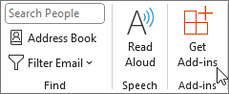
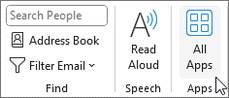
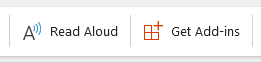
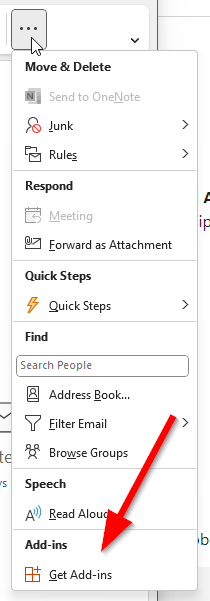
Depending on whether you have “Simplified Ribbon” activated and on the width of your screen, the “Get Add-Ins” or “All Apps” button might appear on the ribbon menu or in the ellipsis ’…’ menu.
The images on the left should give you an idea where you might find it if it’s not immediately obvious.
Once you click it, the Office Add-In Store opens, and you can continue by searching for the SecureMailMerge add-in.
Step 1b. Find the Office App Store in Outlook on Mac

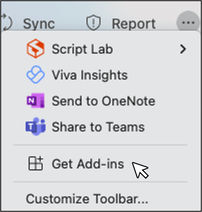
On Outlook for Mac the “Get Add-Ins” button should be in your ribbon or in the ellipsis ”…” menu.
Once you click it, the Office Add-In Store opens, and you can continue by searching for the SecureMailMerge add-in.
Step 1c. Find the Office App Store in Outlook on the Web (outlook.office.com)
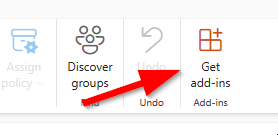
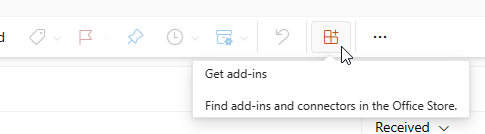
In Outlook on the Web, the “Get Add-Ins” button should be in your ribbon or in the ellipsis ”…” menu.
Once you click it, the Office Add-In Store opens, and you can continue by searching for the SecureMailMerge add-in.
Step 2. Search for SecureMailMerge on the Office App Store
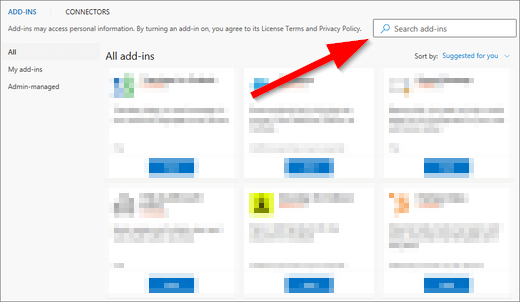
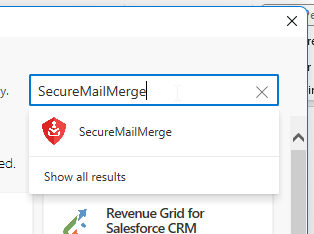
In the box titled “Search add-ins”, type “SecureMailMerge” and click the menu item that pops up.
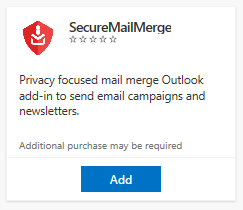
The SecureMailMerge product page will appear in a small preview or as a large details page. Click on the blue “Add” button to install the add-in for your mailbox.
Some organizations require a Microsoft 365 administrator to approve add-ins before users can install them. If you see an approval message instead of the add-in, see Why am I seeing “Need Admin Approval”?.
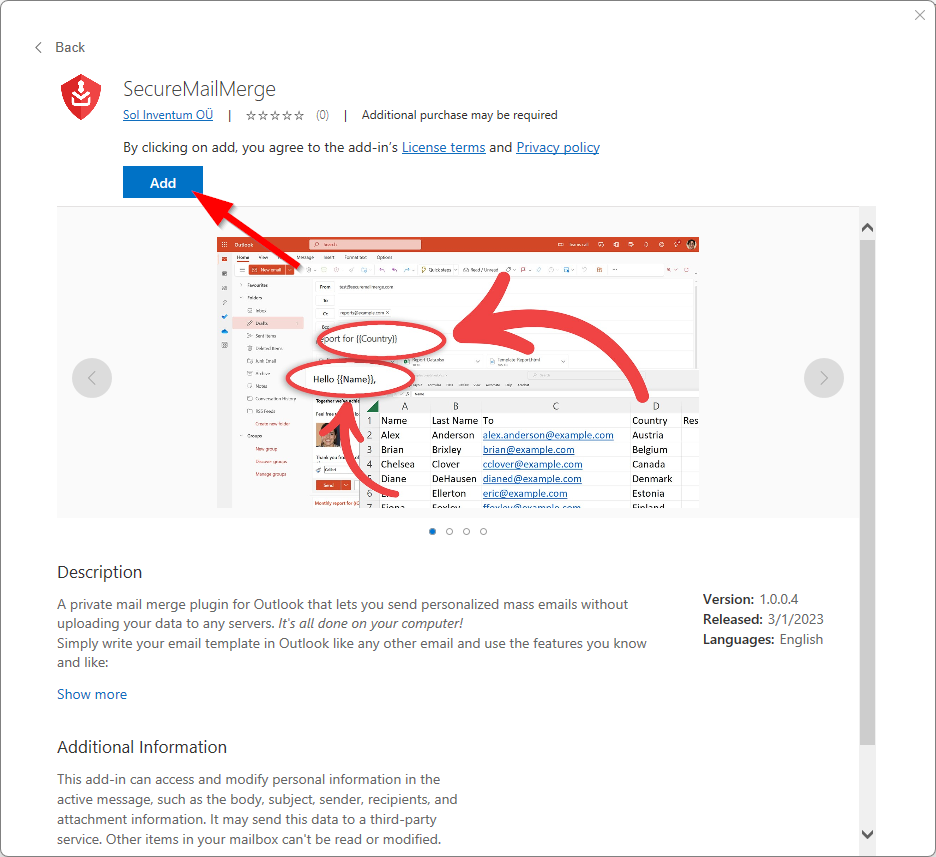
Once the installation finishes, the SecureMailMerge icon appears on the ribbon when you compose a new email. Continue with our getting started guide showing you how to send your first secure mail merge.
Ready to improve your mail merge?
SecureMailMerge for Outlook
Runs inside Outlook, with no external app needed.
Free version, no credit card required.
Purchase license to remove promotional footer.