Permissions required to run SecureMailMerge
A clear breakdown of the Microsoft 365 permissions SecureMailMerge needs to run your mail merge, what each does and why.
Basic information about mail merge processing
It’s important to note that your spreadsheet and message content are processed on your computer inside Outlook, and the finished emails are sent through your own Microsoft 365 mailbox via Microsoft Graph, like any email you write yourself. The permissions you grant to SecureMailMerge are only used on your computer and never transferred to any server for processing.
The only server that receives campaign-related data is our licensing server, which checks whether you have purchased a commercial license. See our firewall section if you want to enforce this.
Microsoft 365 permissions
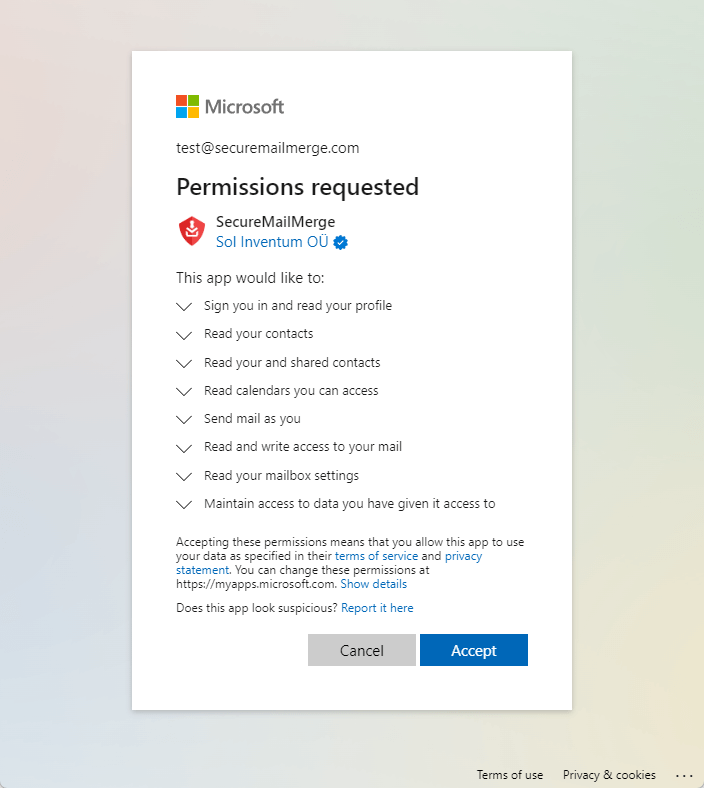
At first glance, the requested permissions make up a long list. However, we consider it better practice to request granular permissions only for the features we offer, rather than broad permissions that essentially give full access to a Microsoft 365 user.
We will list each permission and what we need it for:
- Sign you in and read your profile: This lets the plugin ask you to log in and retrieve your email address, which we use to check whether you have a valid license and display the sending account so that you don’t send a mail merge campaign from the wrong mailbox.
- Read your contacts: With the plugin you can send a mail merge campaign to contacts in your personal address book.
- Read your and shared contacts: The plugin also lets you create mail merge campaigns from contacts in a shared mailbox.
- Read calendars you can access: The plugin lets you filter your contacts by their assigned Outlook categories. Unfortunately, a quirk in the Microsoft permissions architecture requires us to request Calendar access to use these categories in shared mailboxes. This approach was verified and recommended by a Microsoft support engineer.
- Send mail as you: The plugin will create the mail merge as a set of mail messages in your mailbox and then needs to send them.
- Read and write access to your email: In order to support our attachment features the plugin must be able to create draft messages in your mailbox while it uploads the attachments. These drafts are then sent using the previous permission.
- Read your mailbox settings: To comply with any limits on your mailbox, the plugin reads your mailbox settings to ensure it doesn’t do anything prohibited by your organisation’s IT policies or Microsoft 365. This permission also lets the plugin read the Outlook categories for the logged-in mailbox. (For shared mailboxes, see above.)
- Maintain access to data you have given it access to: Microsoft permissions use separate access and refresh tokens. The access token is the first token you receive and requires you to log in. The refresh token then lets the plugin tell Microsoft that it is still working on your behalf (i.e. preparing or sending a mail merge) and obtain a new access token for continued access. This permission lets us refresh access without asking you to log in every couple of minutes while you are sending a mail merge campaign. Despite what the permission indicates, the token is never transferred outside your Outlook instance. As soon as you close the plugin or Outlook, you will be asked to log in again, and no operations can occur when the plugin is not loaded.
If any of this is not clear enough, please contact us at help@securemailmerge.com and we will do our best to improve this documentation.
Required firewall permissions
Microsoft 365 plugins are essentially single-page web applications loaded from our web server at https://www.securemailmerge.com. Only HTTP GET permissions are required to fetch the plugin, with one exception:
The plugin verifies whether the user has a valid license by calling an API endpoint with an HTTP POST request at https://www.securemailmerge.com/api/license.
Therefore, beyond the Microsoft 365 endpoints your tenant already allows (the plugin sends through Microsoft Graph), the plugin requires only HTTP GET and POST permissions on port 443 (HTTPS TLS) to our server cluster at https://www.securemailmerge.com.
The plugin also reports anonymous usage counts to our self-hosted analytics host at https://analytics.solinventum.com (Rybbit; usage counts only, no recipient data) and error reports to Sentry. Both are optional: you can block them at the firewall and the plugin keeps working. In total the plugin contacts four hosts: Microsoft 365 (Graph), www.securemailmerge.com (required), analytics.solinventum.com (optional) and Sentry (optional).
Note: the licensing server is hosted in Microsoft’s European Azure data centers. The website and the add-in files are served by Cloudflare.
Data transfer to our server (i.e. your email address)
The plugin will check for a license whenever you have authenticated with Microsoft 365. This happens three times:
- When you send a test email
- When you send a mail merge campaign
- When you load your address book
The primary email address of the mailbox you are logged in to will be sent to our licensing server (but never any campaign data or emails you generate mail merges for). The email is matched against a list of valid licenses on our licensing server. If there is no match, the email is not stored.
- For users of the free version the email address is not stored after the license check.
- For users of our commercial license the licensed user’s email address is stored until the account is deleted.
Ready to improve your mail merge?
SecureMailMerge for Outlook
Runs inside Outlook, with no external app needed.
Free version, no credit card required.
Purchase license to remove promotional footer.