How do I request read receipts or set high importance?
Learn how to request read receipts, set high importance, and add tracking features to your SecureMailMerge emails in Outlook.
Open advanced options
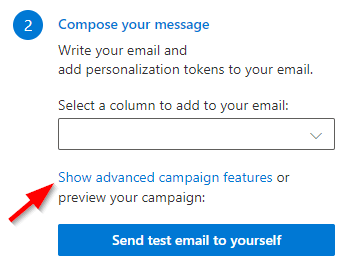
In the campaign manager select the link that shows or changes advanced options. The advanced options reference describes the whole screen, including what carries over to your next campaign.
(Note: These features WILL all apply to the test email as well.)
The three settings below are in the “Message options” group, the first of the three.
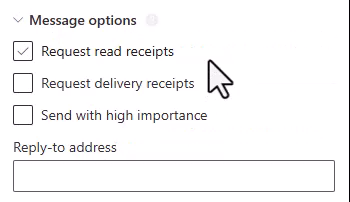
Option: Request read receipts
This will send your mail merge with a request for a read receipt. This feature works just like the read receipt feature in Outlook and may not work in all cases if the recipient is using a different email client.
Option: Request delivery receipts
This will send your mail merge with a request for a delivery receipt. This feature works just like the delivery receipt feature in Outlook and may not work in all cases if the recipient is using a different email client.
Option: Send with high importance
All emails will be set to high importance, which is supported by most email clients to indicate an important email.
Ready to improve your mail merge?
SecureMailMerge for Outlook
Runs inside Outlook, with no external app needed.
Free version, no credit card required.
Purchase license to remove promotional footer.