Know how directly from the Microsoft 365 mail merge experts
How to Work Within the Outlook Email Limit
By Alex Duggleby · Founder, SecureMailMerge
With graphics, long-form content, storytelling, and media becoming the focus of email games, sending a massive file attachment to hundreds of people is challenging on any email platform, including Outlook.
The truth is, you’re not alone.
Many professionals and businesses face similar challenges daily, trying to stay afloat in the email deluge. But here’s where it gets eye-opening. According to the Radicati Group’s Email Statistics Report 2021-2025, office workers, on average, receive 121 daily emails.
With such a tidal wave of messages crashing into our inboxes, managing Outlook email limits isn’t just a good idea, it’s necessary.
In this comprehensive guide, we’ll navigate through Outlook email limit per day, on file size and attachments, and beyond, equipping you with the knowledge and tools to sail smoothly.
From understanding the root of these constraints to unveiling ingenious strategies, we’ve got your back. It’s time to take control, boost your productivity, and master the art of managing Outlook email limits like a pro.
So, let’s jump in!
Ways your Outlook 365 Account is Limiting Your Business
Email is the lifeblood of modern communication, and Microsoft Outlook 365 is a trusted choice for countless businesses, from startups to large organizations.
And while you might not consider this as an individual user, a business in full swing, or an entrepreneur planning to create one, you must know its limitations.
Let’s dive into two key aspects where Outlook 365 may be holding your business back: email file size limits and recipient limits.
Outlook email file size limit
Consider you’re in an agency tasked with sending a proposal to a high-profile client, and this proposal includes essential multimedia elements like high-resolution images, videos, or complex presentations.
Suddenly, you’re met with the dreaded file size limit in Outlook 365, which is 35 MB by default and up to 150 MB where your administrator allows it.
These Outlook email max file size limits can pose a real challenge for agencies, startups, or any organization involved in content creation and sharing.
High-quality images, videos, or design files can easily surpass these thresholds, forcing you to compress your files, compromise quality, or search for alternative file-sharing methods, leading to increased complexity.
Outlook email recipient limit
Now, consider you’re a startup founder eager to connect with a substantial list of potential investors, or you’re responsible for disseminating essential company updates to a vast internal audience.
You hit a brick wall in Outlook 365, the recipient limit this time. Set at 500 recipients per message by default (administrators can raise it to 1,000), this limitation can stifle your outreach efforts.
This limitation can be a significant bottleneck for businesses, especially those in the early stages or focused on growth.
Mass email campaigns are essential for success, whether for lead generation, client engagement, or internal newsletters. Yet, Outlook’s recipient limits make it challenging to reach your target audience efficiently.
Where Does the Outlook Mailbox Limit Begin?
Now, we know there are many types of Outlook email storage and send-out limits.
So, understanding where the Outlook mailbox limit begins is crucial for effectively managing your email communication.
For instance, it’s important to note that daily and monthly limits on sending emails can significantly impact your communication efforts.
Microsoft 365 work and school mailboxes can send to 10,000 recipients per rolling 24 hours. The limit counts recipients, not messages, and it operates on a rolling timer rather than a strict daily timer.
This means your Outlook email recipient limits reset 24 hours after reaching them rather than resetting at midnight the following day.
There’s also a limit on the maximum number of recipients for a single email, set at 500 by default; administrators can raise it to 1,000. This limit applies to the To, Cc, and Bcc fields combined. Sending is also throttled at 30 messages per minute, your tenant has an external-recipient limit that depends on its license count, and administrators can set lower limits. These are Microsoft’s defaults, not guaranteed capacity.
Moreover, Microsoft 365 caps the message size, attachments included, at 35 MB by default and up to 150 MB where the administrator allows it.
For businesses, particularly in larger organizations, this recipient limit can become a significant bottleneck in your internal communication process. It adds unnecessary complexity and effort when attempting to reach larger groups of recipients.
So what’s the solution?
3 Strategies for Sending Within the Outlook Mass Email Limit
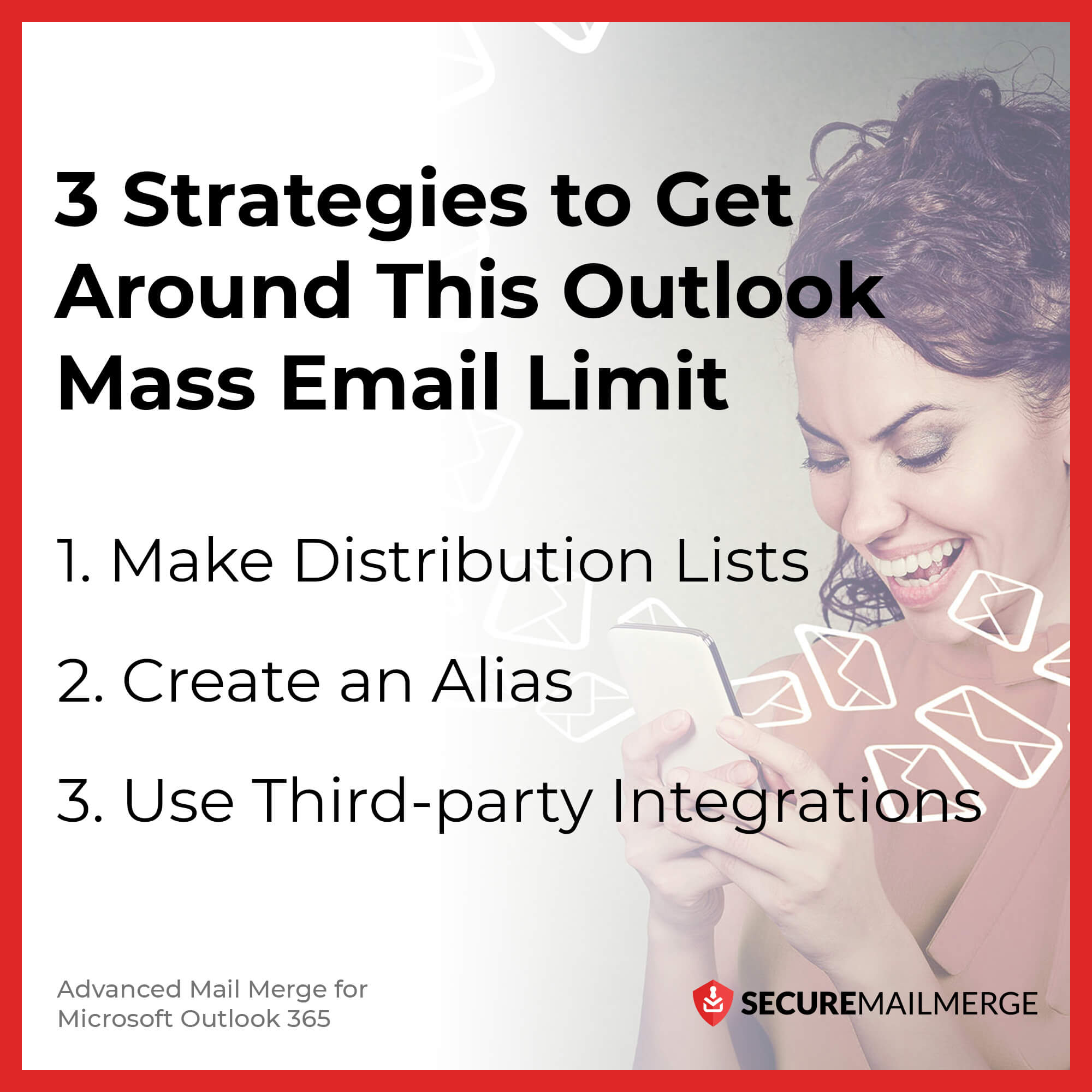
Managing the Outlook mass email limit can be challenging, especially when reaching a substantial audience or sharing critical information within your organization.
Fortunately, there are several strategies you can employ to navigate these constraints.
Here are three effective methods:
1. Make Distribution Lists
Distribution lists (also known as contact groups) are a built-in feature in Outlook that allows you to create a list of recipients under a single name. Instead of sending a message to individual email addresses, you send it to the distribution list, which then forwards the message to all the members on the list.
Pros:
Creating distribution lists in Outlook is relatively straightforward and doesn’t require third-party tools. It’s an efficient way to group your contacts, making it easier to send mass emails without hitting the recipient limit.
Drawbacks:
While distribution lists can help you bypass recipient limits, they come with their own set of limitations. For instance, managing and updating lists with numerous members can take time and effort. Additionally, you may encounter email tracking and personalization issues, as the emails are sent to a group rather than individual recipients.
2. Create an Alias
An alias is an alternative email address that forwards messages to your primary inbox. Creating aliases in Outlook does not raise your sending limits, because Microsoft counts recipients per mailbox and an alias belongs to the same mailbox. Aliases are still useful for keeping newsletters, departmental communications, or customer support inquiries separate from your personal address.
Pros:
Using aliases can be a practical way to manage different types of communications without overloading your primary email address. It can also help you organize your inbox effectively.
Drawbacks:
Aliases do not add sending capacity, and creating and managing several of them can become complex and may offer a different level of personalization and tracking than individual emails. Additionally, aliases may not be supported or easily configured in all Outlook versions or email plans.
3. Use Third-party Integrations
Many third-party email marketing and communication platforms can seamlessly integrate with Outlook. These platforms are designed for mass email campaigns and provide features for managing large lists of recipients, tracking email performance, and personalizing messages.
Pros:
Third-party integrations offer powerful solutions for bypassing Outlook’s mass email limits. They provide robust analytics, allowing you to measure open rates, click-through rates, and other key performance metrics. They also enable highly targeted and personalized email campaigns.
Drawbacks:
While third-party integrations offer significant advantages, they may come with associated costs and email limits. Many of these services operate on a subscription model, which can add to your expenses.
Additionally, integrating external services may require technical setup, and learning and adapting to the new platform might take some time. Moreover, compliance with data protection regulations, like GDPR, becomes more complex when using third-party solutions.
Secure Mail Merge, Work Within Your Outlook 365 Limits with a Native Plug-in
Do you want all three solutions and many more features in one?
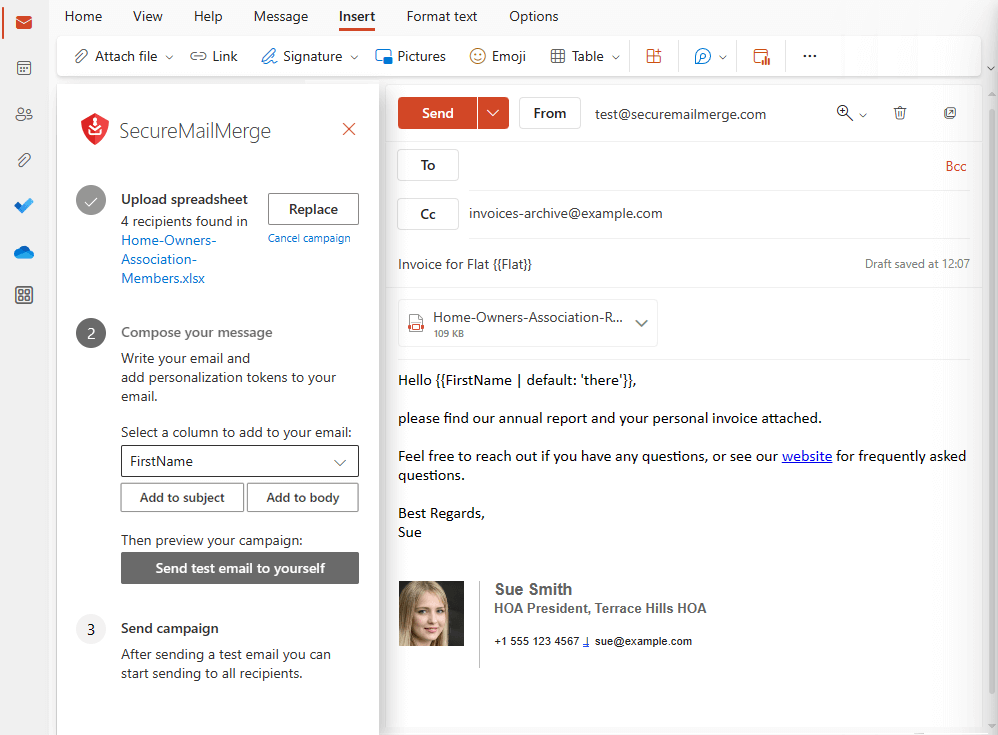
Secure Mail Merge has you covered! It’s a native plug-in designed to make the most of your Outlook 365 sending allowance at the most affordable cost possible! SecureMailMerge adds no limits of its own, and Microsoft’s limits still apply.
-
Flexible Sending Options: SecureMailMerge offers flexibility in how you send your emails. You can send a spreadsheet supporting various formats like Excel, CSV, TXT, Numbers, OpenDocument, and more. Alternatively, select recipients directly from your personal or shared address book, allowing you to include their personal information such as name, company, or department.
-
Full Microsoft 365 message size: SecureMailMerge adds no size cap of its own, so you get the full allowance your mailbox has, 35 MB by default and up to 150 MB where your administrator allows it. A large file, a lengthy message, a video, or numerous images all fit within that.
-
Individualized Attachments: Do you need to attach personalized invoices, custom reports, or unique files for each recipient? No problem. Simply add a column with the filenames to your spreadsheet and upload the files, SecureMailMerge takes care of the rest.
-
Tailored Emails, Modern Interface: With SecureMailMerge, you can effortlessly send personalized emails to a carefully curated list of contacts, all from the comfort of your email address and a sleek, modern interface within Outlook. No more clunky, outdated mail merge procedures, SecureMailMerge puts advanced features at your fingertips. (New to this? Our complete guide to mail merge in Outlook covers every method, including what works in New Outlook.)
-
Seamless Integration with Microsoft 365: When you send emails with SecureMailMerge, they appear as if you sent them personally from your Microsoft 365 account. This enhances your professionalism, boosts email deliverability, and garners higher response rates. With SecureMailMerge, you get better results faster.
-
Personalization and Rich Formatting: Personalize your emails using cells from your spreadsheet or contact details to create a unique and engaging message. You can also use rich formatting options like adding tables, signatures, images, or anything else you’re accustomed to from Outlook.
-
Common Outlook Features: SecureMailMerge seamlessly integrates with common Outlook features such as read receipts, high-importance flags, and sending with CC and BCC recipients with individual values for each email.
Are you ready to make the most of your Outlook 365 sending allowance?
Install and try out the Free Version of SecureMailMerge directly from Microsoft AppSource and revolutionize how you manage your email campaigns!
Enjoyed this article?
We have a whole library of useful articles for you to read
Show me the library of Outlook articles