How do I schedule my mail merge for a specific day?
Learn how to schedule your SecureMailMerge mail merge in Outlook to start sending emails on a specific future date for planned delivery.
Open advanced options
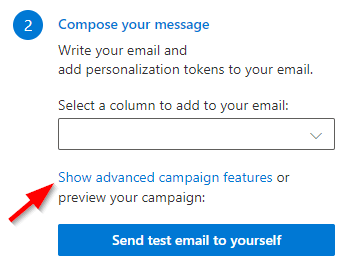
In the campaign manager select the link that shows or changes advanced options. The advanced options reference describes the whole screen, including what carries over to your next campaign.
“Start sending on” is the first setting in the “When to send” subgroup of the “Schedule” group, above “Send only on” and “Send between”.
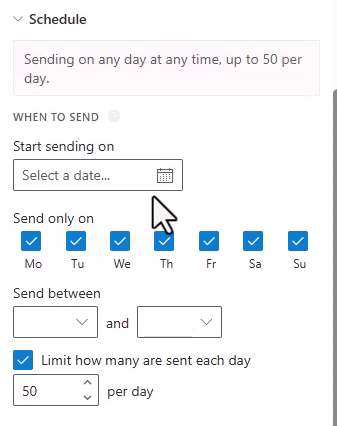
Option: Start sending on X
The campaign will be generated in your Drafts folder, and the emails will be set to send on the day you specify. By default, sending will start immediately. See here if you are trying to send only during specific hours, on selected weekdays, or with a daily message limit. These options can all be set together.
SecureMailMerge generates the messages in your Drafts folder while Outlook is open, then hands them to Microsoft 365 with a send time using Outlook’s own scheduled send. Microsoft 365 sends them on schedule whether or not Outlook or your computer is on.
Testing
Unfortunately, the delay is not visible in Classic Outlook on the desktop. To verify the scheduled time, open your mailbox in New Outlook or Outlook on the Web.

Note: This feature will NOT apply to test emails. Test emails will be sent immediately.
Ready to improve your mail merge?
SecureMailMerge for Outlook
Runs inside Outlook, with no external app needed.
Free version, no credit card required.
Purchase license to remove promotional footer.